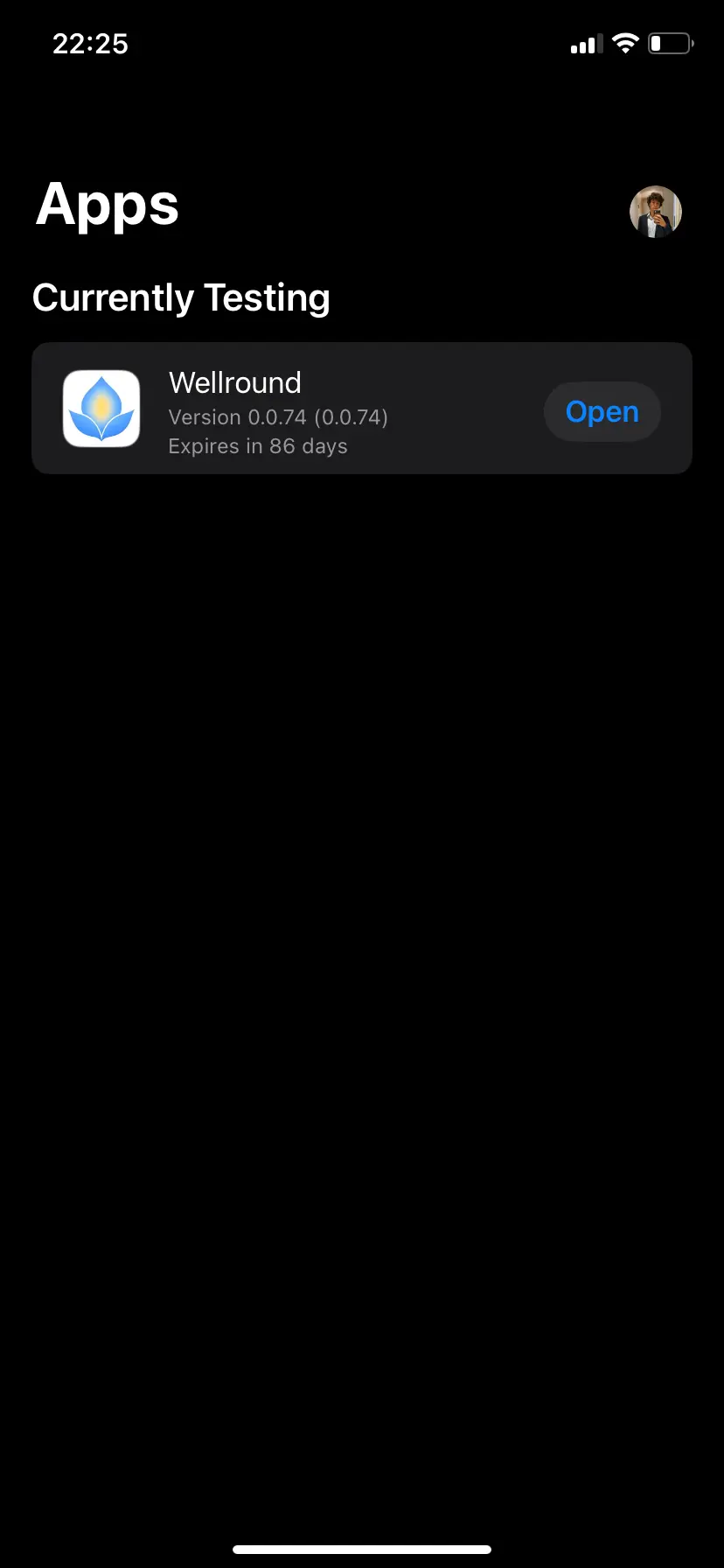
Download from Test Flight
Download the app from test flight here
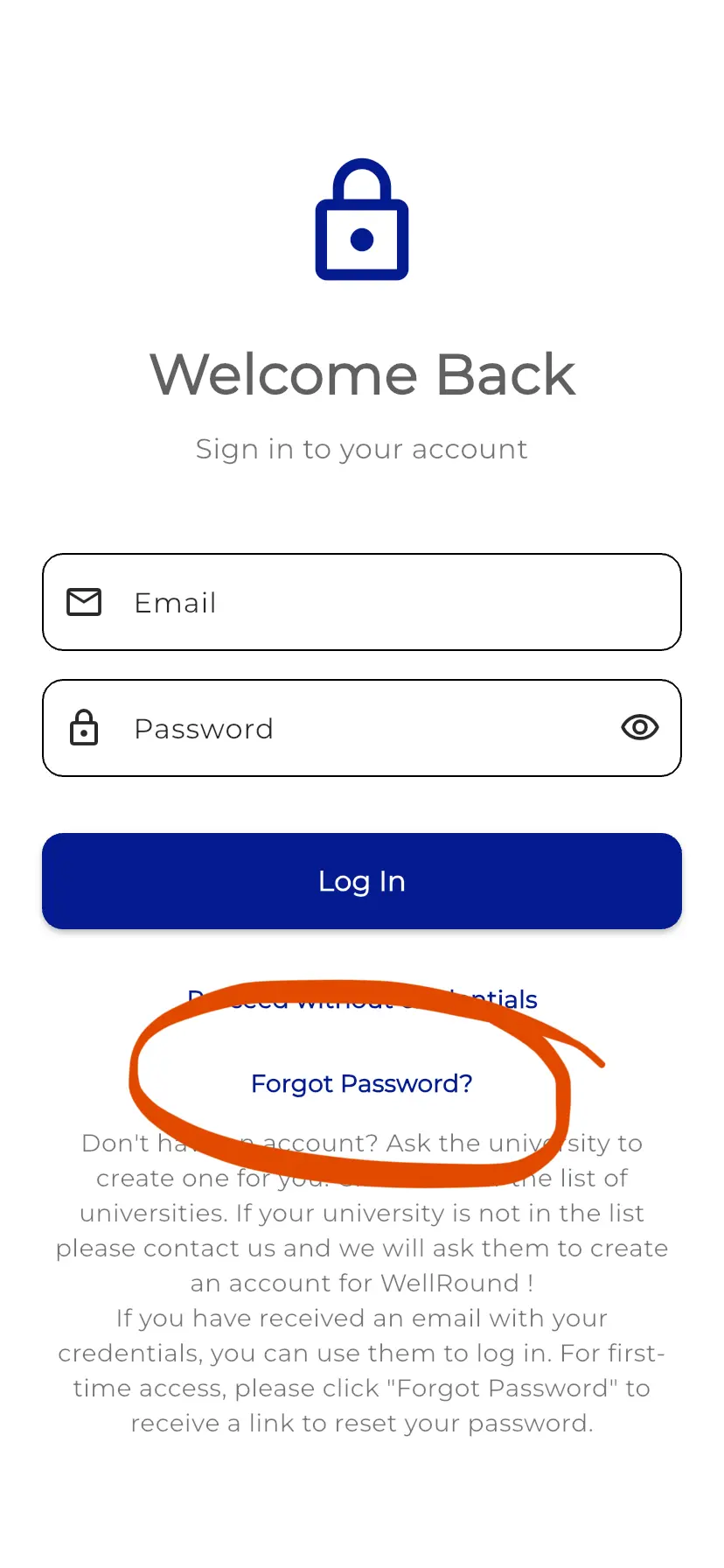
Reset password
If this is your first access. Please click on forget password. You will receive an email to reset the password. Check in the spam folder!
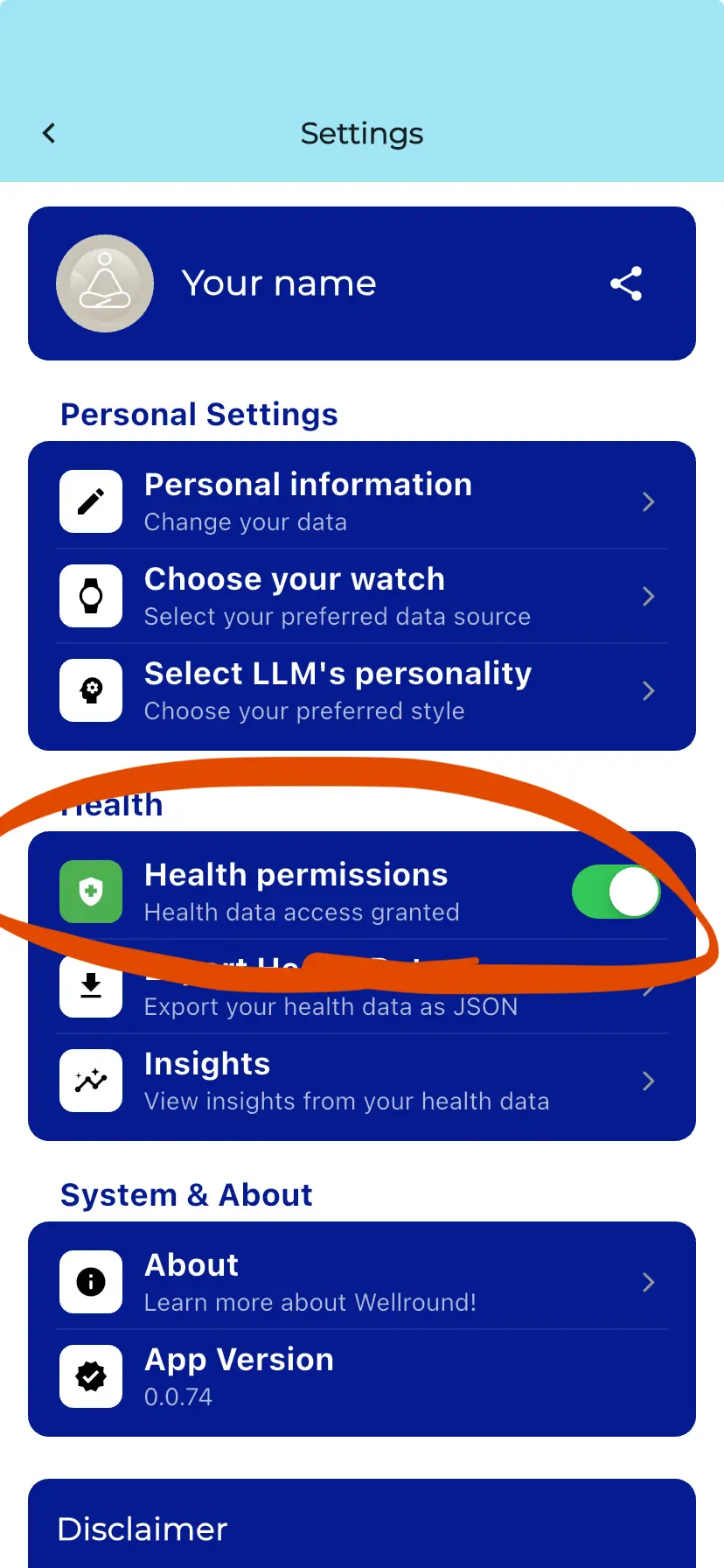
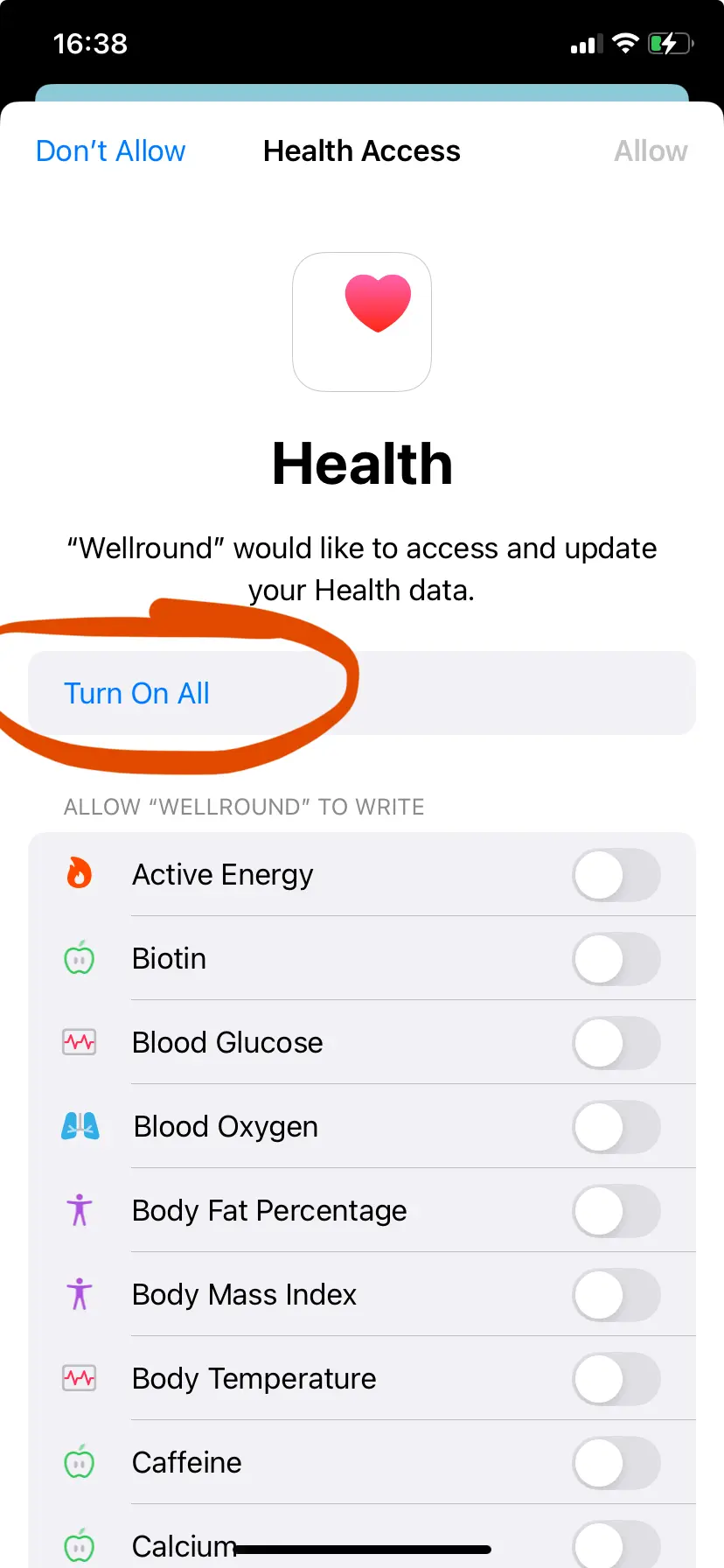
Give health permissions
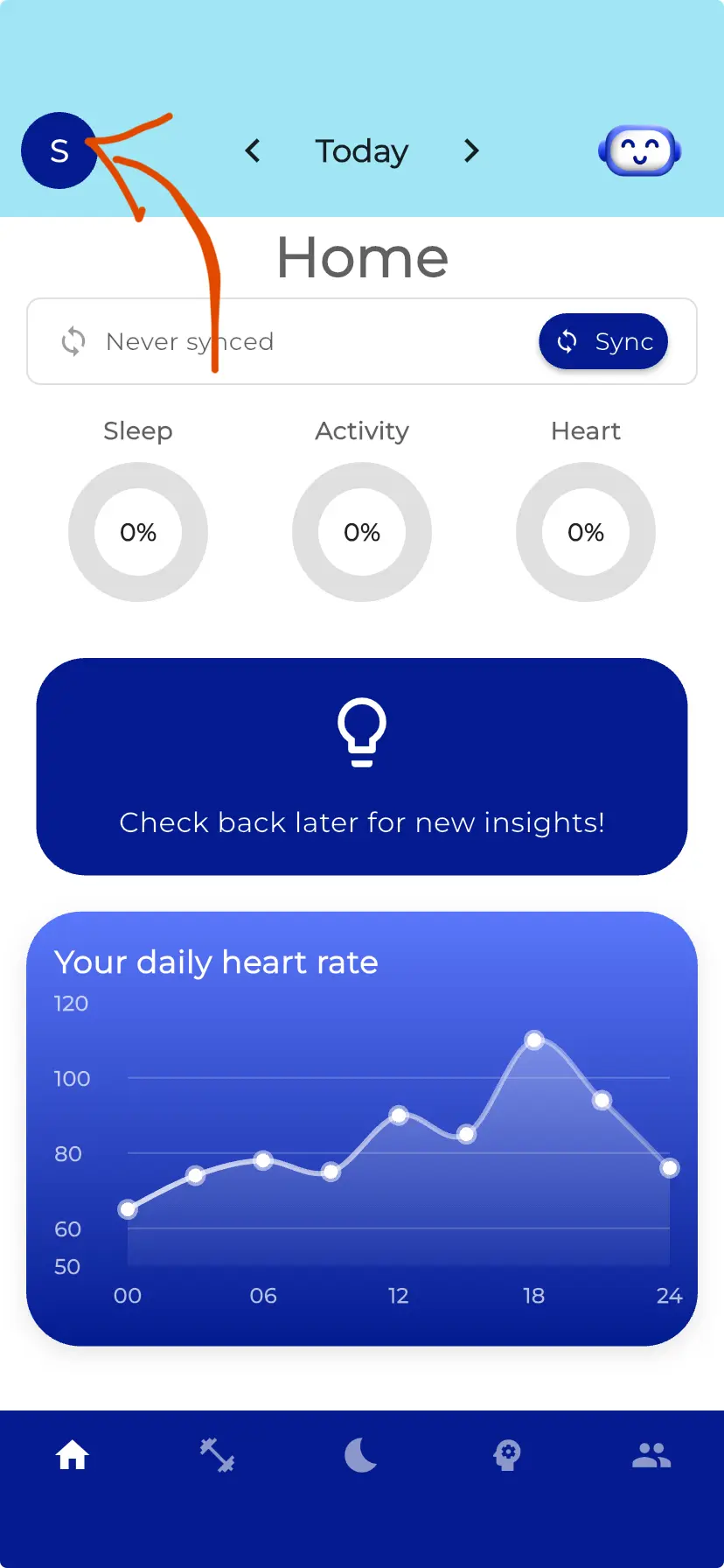
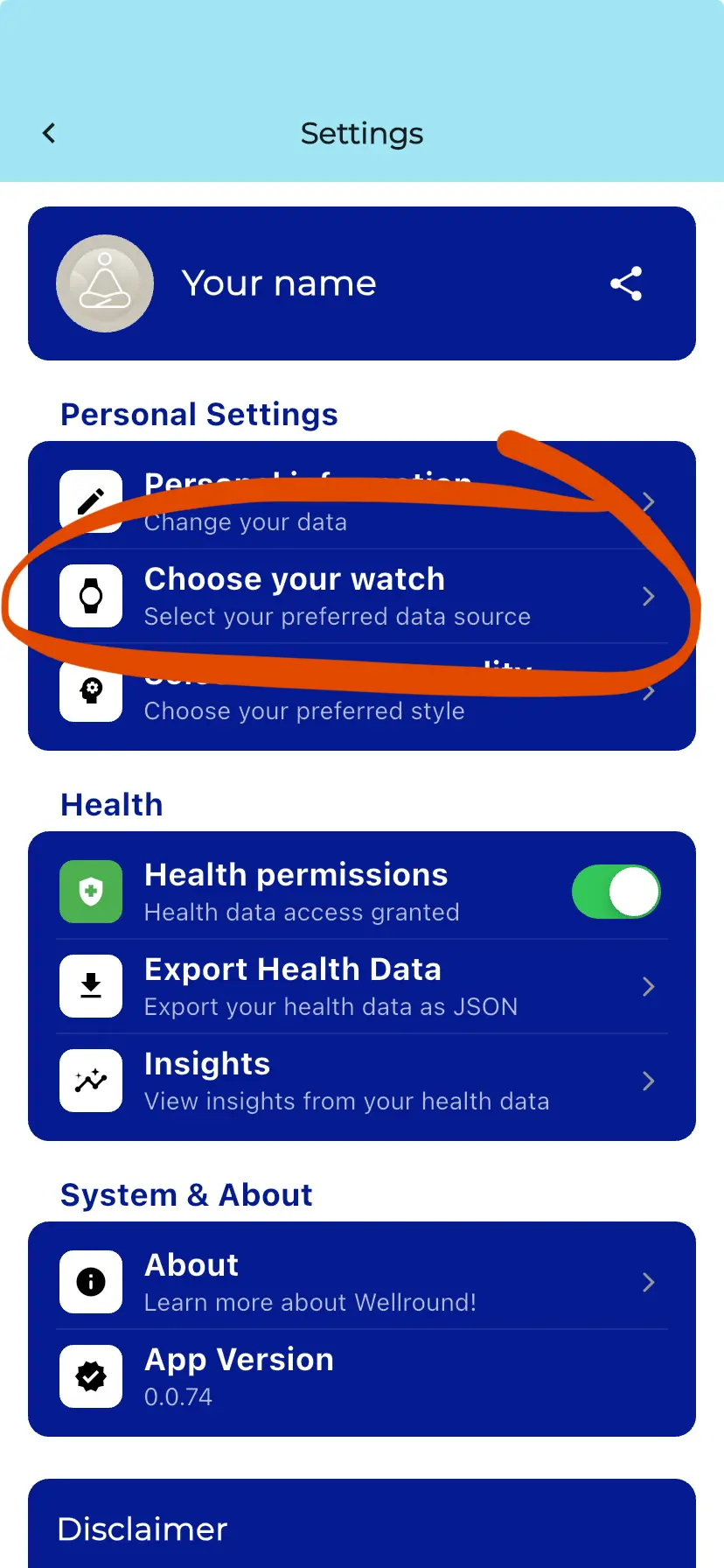
Once you have your new password, go to settings and give access to health settings as shown in the figures
Add your smartwatch
If you have a smartwatch connected to your phone, and you successfully gave the permissions youo will see a a list of smartwatches in the settings. Select the smartwatch that you want to use with the app. You CANNOT use multiple watches for now.
Chat with your coach
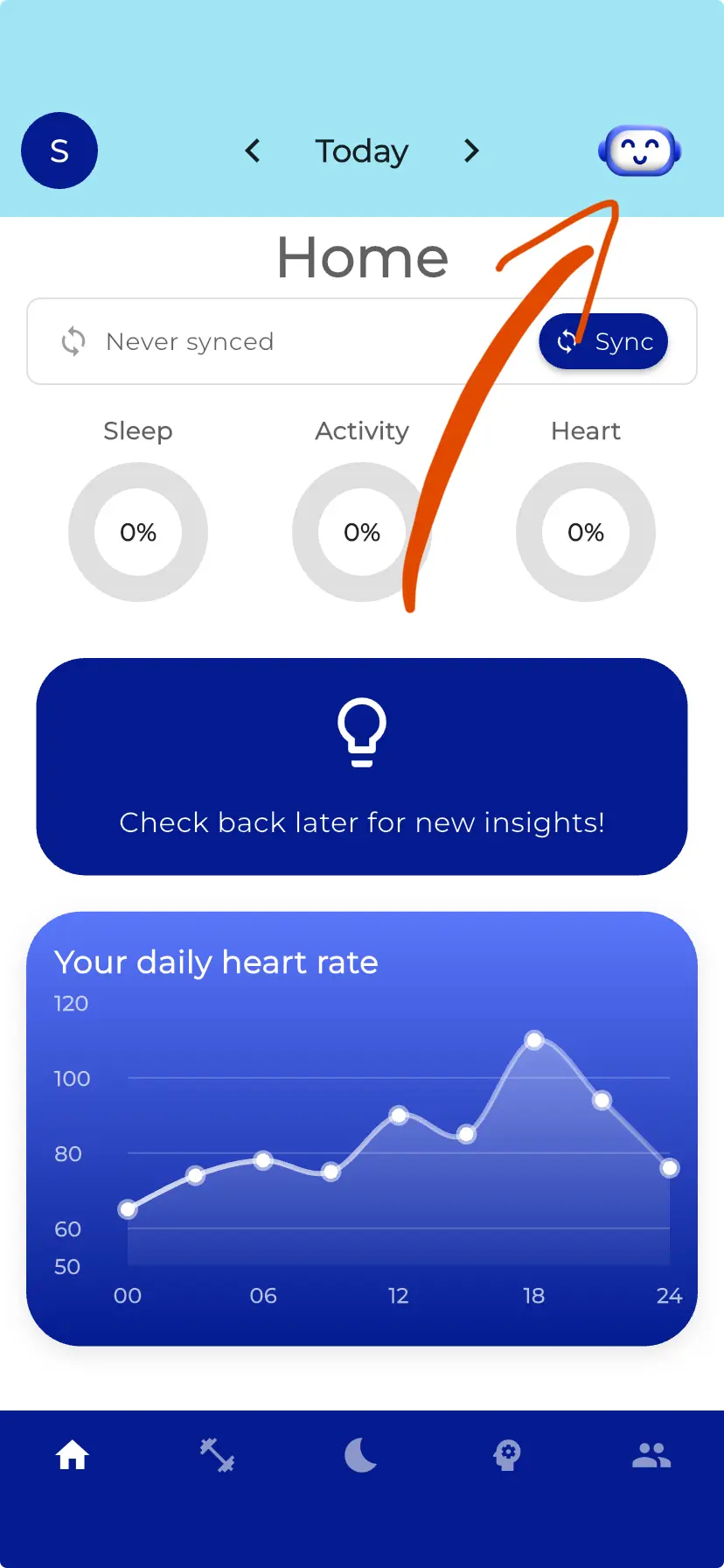
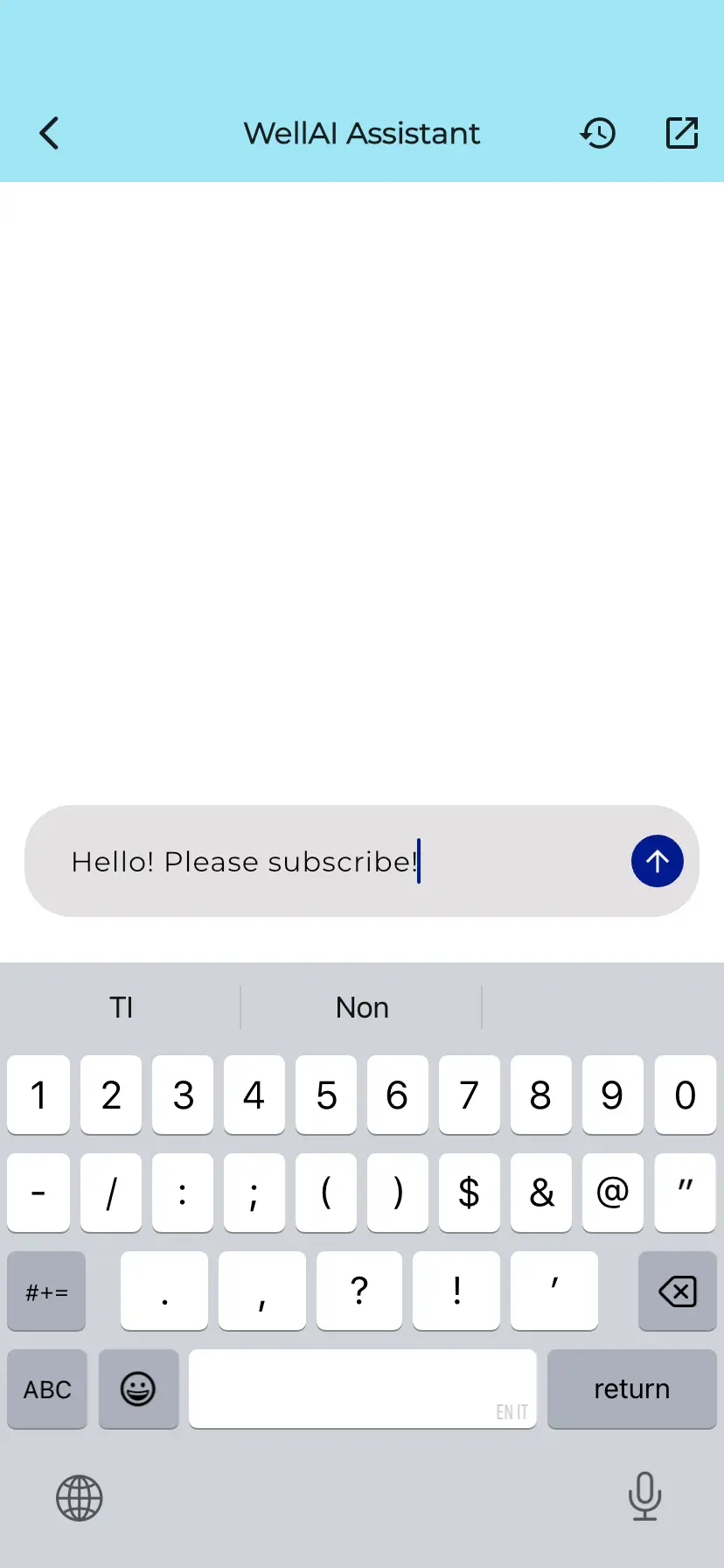
By clicking on the robot figure you will enter your personal chat. Here you can ask questions about your data and general wellness advices. Check the settings to change the personality of the LLM 🤫